How to Perform the Target Tracking Module
This quick guide provides information on how to perform the Target Tracking module on the Virtualis BalanceVR and PhysioVR solutions. For additional information, please refer to the Target Tracking user manual.
Equipment needed
To view the equipment needed, click on the “i” icon in the upper right corner of the module. To perform the Target Tracking module, you will need the VR headset. If you choose the controller viewfinder setting, you will also need one hand controller.
Patient setup
Depending on the patient’s therapeutic goals, they can sit or stand to perform this module.
1. Open a patient profile.
2. Click on “Start a session” to access the module list.
3. Type “Target Tracking” in the search bar. The first three letters are often enough.
4. Click on the Target Tracking button to launch the module.
5. Select the initial settings based on your patient’s therapeutic goals.
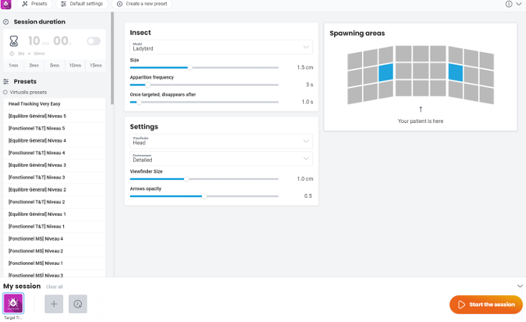
- Session duration: choose a preset time option or create your own value.
- Insect options:
- Model: type of insect to be used as the target in the activity.
- Size: size of the insect target.
- Apparition frequency: how fast the target appears.
- Disappearance: the time it takes for insects to disappear after being targeted.
- Settings:
- Viewfinder: there are two options to “catch” the insect in the viewfinder. The head option requires the patient to move their head, and the HTC Vive controller option requires the use of upper limb movements.
- Environment: the detailed environment places the individual in a warehouse setting and the simple environment places the individual in the clouds.
- Viewfinder size: diameter of the red circle viewfinder.
- Arrows opacity: Indicates the transparency level of the green directional arrows that cue the individual to locate the target.
- Spawning areas: location where the insect targets will be displayed. The selection is made by clicking the desired area. At least two zones must be selected.
Test procedure
6. Once settings have been finalized, click on “Start the session”.
7. Before starting the module, have the patient look forward and press “C” on the keyboard to center the image inside the VR headset.
8. Instruct the patient that the goal of the module is to find and catch the insects in the red circle.
9. Press “Start” to begin the module.
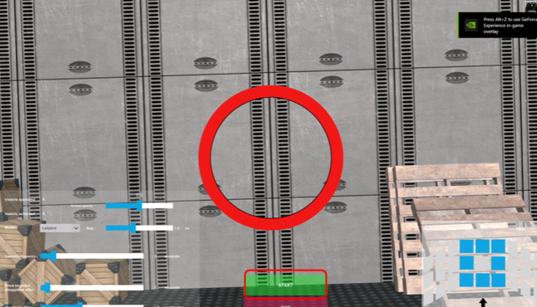
10. Perform real time progressions by changing the parameters on the bottom of the clinician screen (see below). Patients cannot see these adjustments.
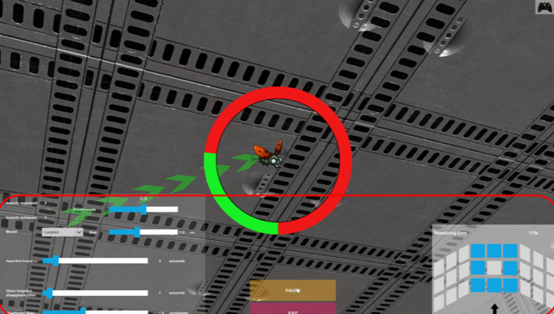
In general, decreasing the insect size, apparition frequency, viewfinder size, arrows opacity, and increasing spawning areas will increase the complexity of the task.
11. Click the Xbox remote icon in the upper right corner to view information about shortcut keys.
View results
12. When the module is complete, you can view the results by clicking on the histogram icon.
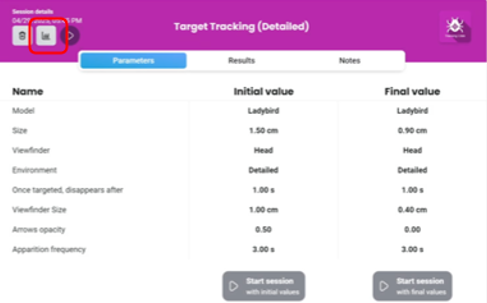
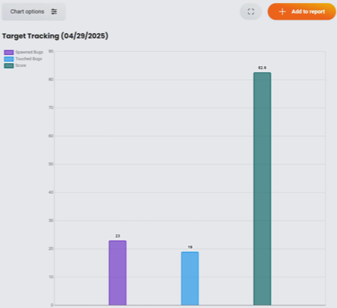
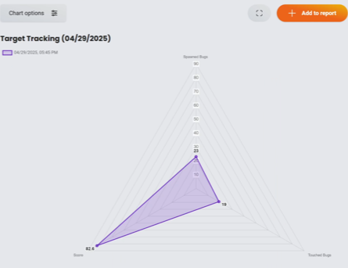
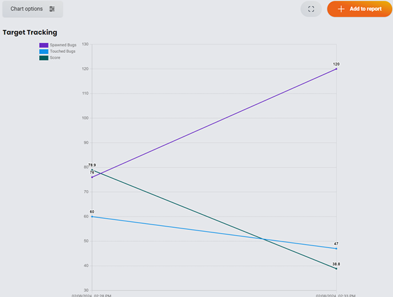
Default data points: total number of insects displayed (spawned bugs), total number of insects caught (touched bugs), and score (% correct).
Bar graph example:
Radar plot example:
Line graph option shows results between sessions:
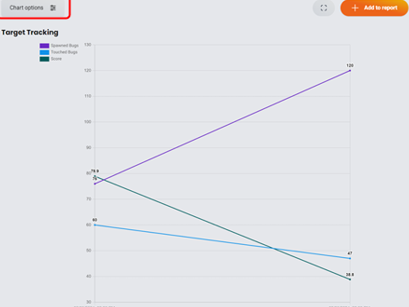
You can also access additional results by clicking “Chart options”:
Presenter