How to Perform the Optical Flow Module
This quick guide provides information on how to perform the Optical Flow module on the Virtualis BalanceVR and PhysioVR solutions. For additional information, please reference the Optical Flow user manual.
Equipment needed
To view the equipment needed, click on the “i” icon in the upper right corner of the module. To perform the Optical Flow module, you will need the VR headset. Note: this module is also compatible with the StaticVR and MotionVR force plates.
Patient setup
Depending on the patient’s therapeutic goals, they can sit or stand to perform this module.
1. Open a patient profile.
2. Click on “Start a session” to access the module list.
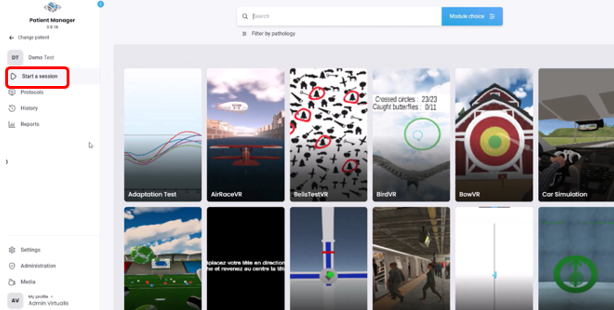
3. Type “Optical Flow” in the search bar. The first three letters are often enough.
4. Click on the Optical Flow button to launch the module.
5. Select the initial settings based on your patient’s therapeutic goals.
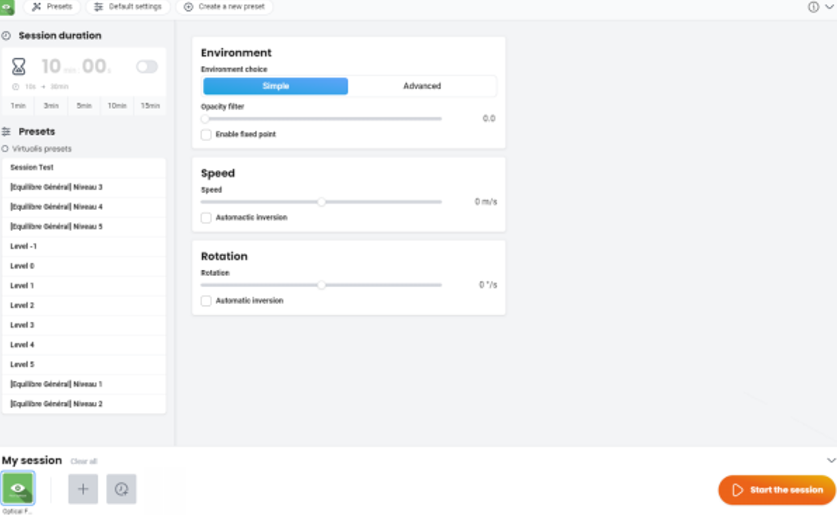
- Presets: level -1 to 5 with increasing level of complexity.
- Environment choice:
- Simple: linear movement only. 3D elements (asteroids) can be activated/deactivated to change visual complexity.
- Advanced: tunnel environment with options for furrows.
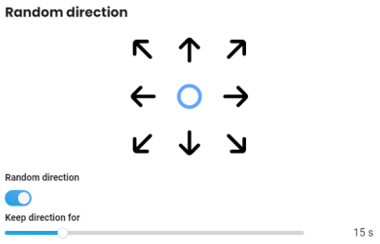
- Set direction of furrows by clicking one of the arrows or click of “random duration” and select multiple directions.
- Note: if you activate MotionVR in the module, this will result in dynamic force plate movements in the same direction as the furrows.
- Opacity filter: transparency of the environment.
- Enable fixed point and size: activate for a visual fixation point in the environment.
- Size: value 5 to 90 degrees.
- Speed: scrolling speed.
- Speed value: -50 to 50 m/s.
- Automatic inversion: automatically changes from forward to backward scrolling.
- Forward flow duration value: 10 to 120 seconds.
- Backward flow duration value: 5 to 30 seconds.
- Rotation: scenery rotation.
- Negative values: counterclockwise rotation.
- Value: -30 to 0 degrees/second.
- Positive values: clockwise rotation.
- Value: 0 to 30 degrees/second.
- Automatic inversion: automatically changes directions of rotation.
- Value: 10 to 120 seconds.
- Negative values: counterclockwise rotation.
6. Once settings have been finalized, click on “Start the session”.
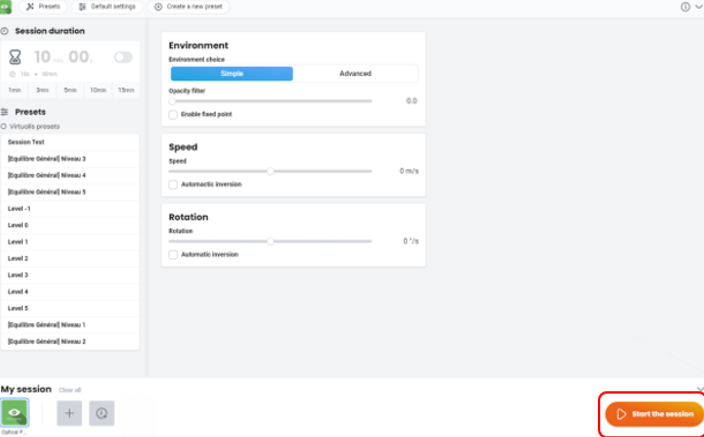
7. Before starting the module, have the patient look forward and press “C” on the keyboard to center the image inside the VR headset.
8. The goal of the module is to decrease a patient’s symptoms through progressive habituation. You should monitor your patient’s symptoms closely throughout the activity.
9. Press “Start” to begin the module.
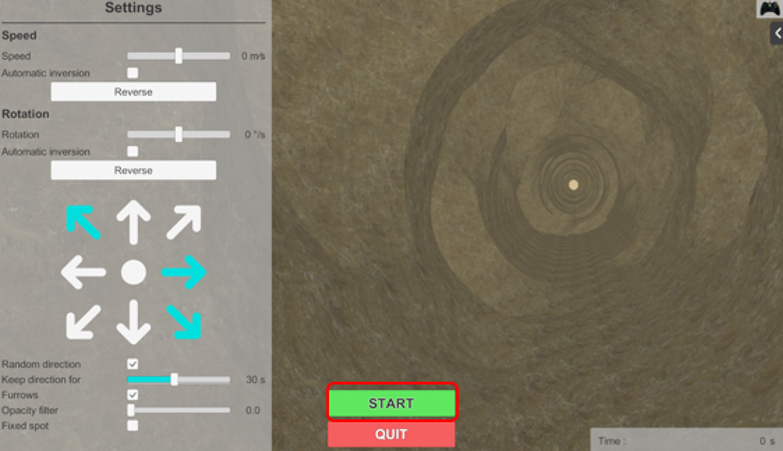
10. Perform real time progressions by changing the parameters on the left side of the clinician screen (see below). Note: the number of parameters is based on the environment selected. Patients cannot see these adjustments.
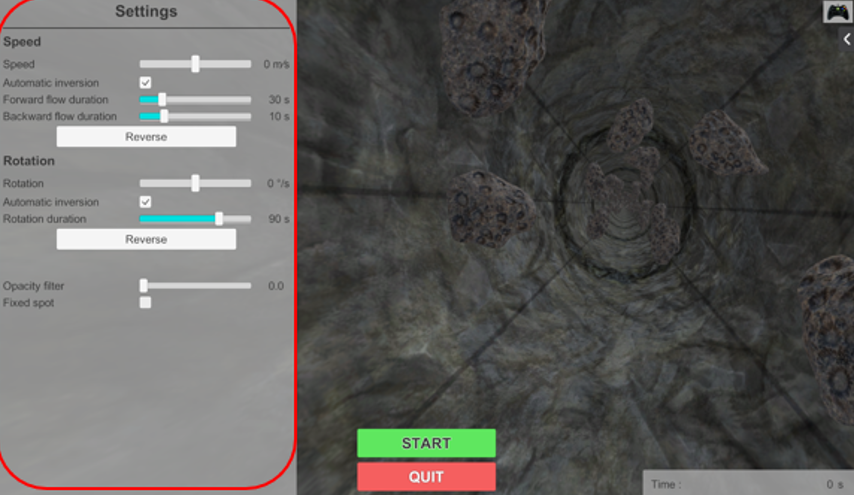
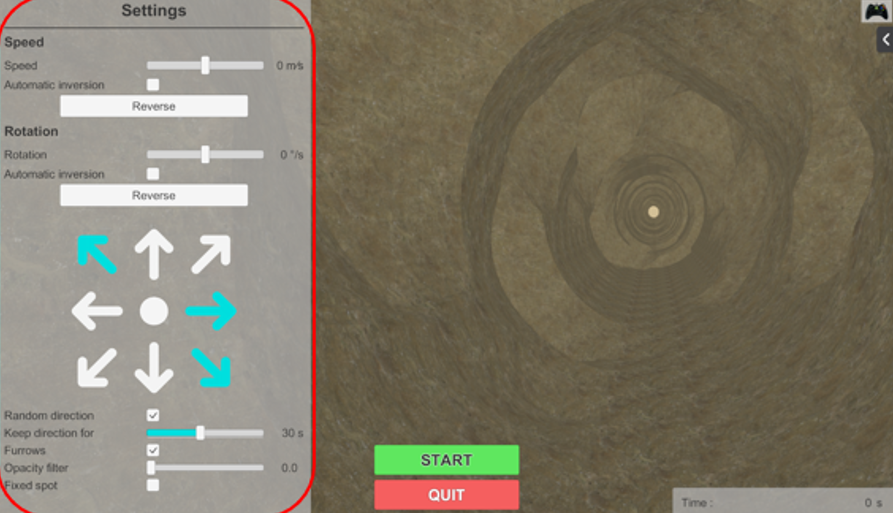
In general, removing the fixed spot, decreasing the opacity, increasing the speed, changing direction of flow (forward → backward → rotation), changing the level of the environment complexity (simple → advanced), and adding furrows increases the complexity of the activity.
11. Click the Xbox remote icon in the upper right corner to view information about shortcut keys.
12. Then you can view the results by clicking on the histogram icon.
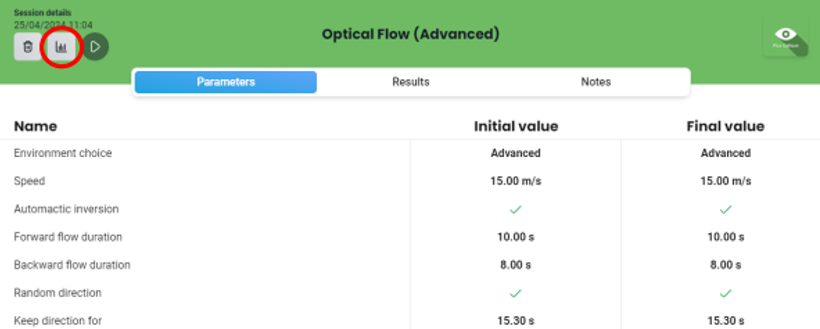
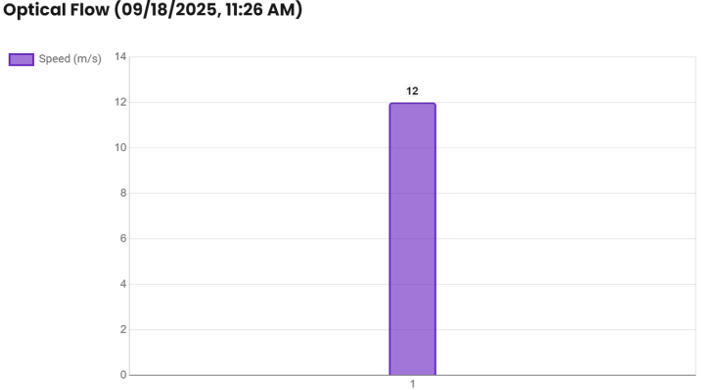
13. Speed is the only default result and can be displayed as a bar graph or a line graph (used when comparing over multiple sessions). You can select other results by clicking “chart options” on the top left of the screen.
Presenter