How to Perform the Head-Eye Coordination Module
This quick guide provides information on how to perform the Head-Eye Coordination module on the Virtualis BalanceVR and PhysioVR solutions. For additional information, please reference the Head-Eye Coordination user manual.
Equipment needed
To view the equipment needed, click on the “i” icon in the upper right corner of the module. To perform the Head-Eye Coordination module, you will need the VR headset.
Patient setup
Depending on the patient’s therapeutic goals, they can sit or stand to perform this module.
1. Open a patient profile.
2. Click on “Start a session” to access the module list.
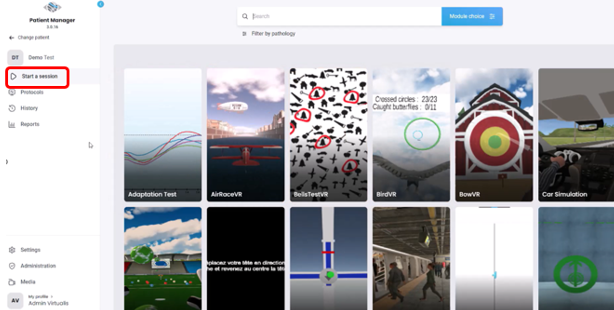
3. Type “Head-Eye Coordination” in the search bar. The first three letters are often enough.
4. Click on the Head-Eye Coordination button to launch the module.
5. Select the initial settings based on your patient’s therapeutic goals.
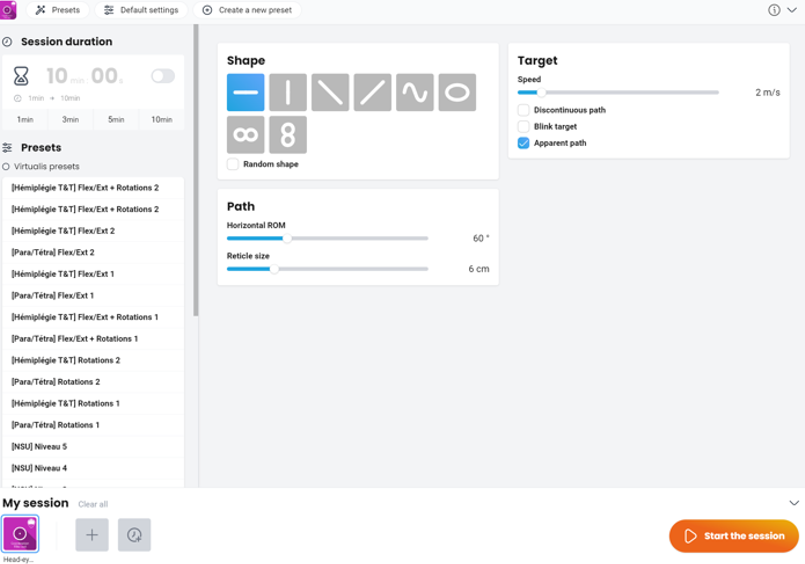
- Session duration (optional): select amount of time to perform the module.
- Shape: shape of the path for the module. In general, these are listed in order from easiest to hardest.
- Path: additional settings based on the shape of the path including horizontal and vertical range of motion, reticle size.
- Target: settings for the target on the path:
- Speed: 0 – 20 m/s (default: 2 m/s).
- Discontinuous path: when not selected (default), the target will move back and forth on the path. When selected, the target will return to the beginning of the path each repetition.
- Blink target: when not selected (default), the target will remain solid. When selected, the target will blink on and off.
- Apparent path: when selected (default), the path will be visible to the patient. When not selected, the path will not display.
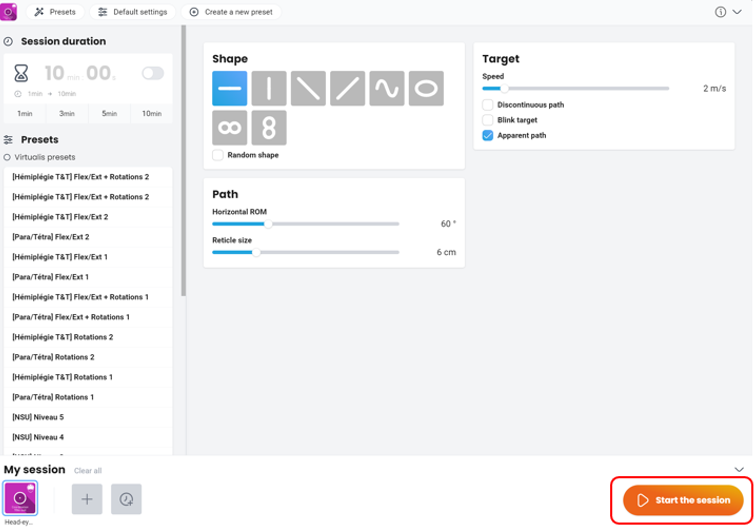
6. Once settings have been finalized, click on “Start the session”.
7. Before starting the module, have the patient look forward and press “C” on the keyboard to center the image inside the VR headset.
8. The goal of the module is dependent on your patient’s therapeutic goals (mobility, coordination, habituation of dizziness symptoms, etc.). You should monitor your patient’s symptoms closely throughout the activity.
9. Press “Start” to begin the module.
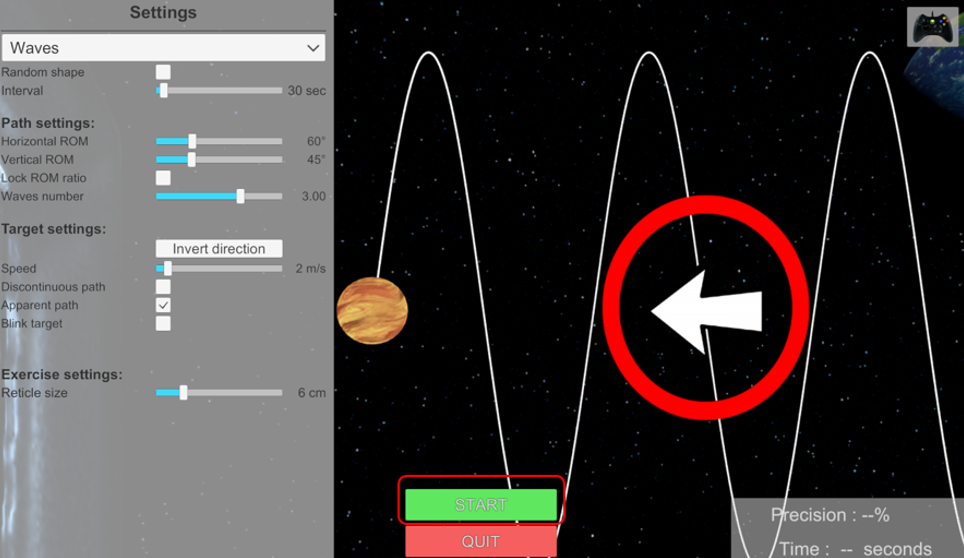
10. Perform real time progressions by changing the parameters on the left side of the clinician screen (see below). Note: the number of parameters is based on the path selected. Patients cannot see these adjustments.
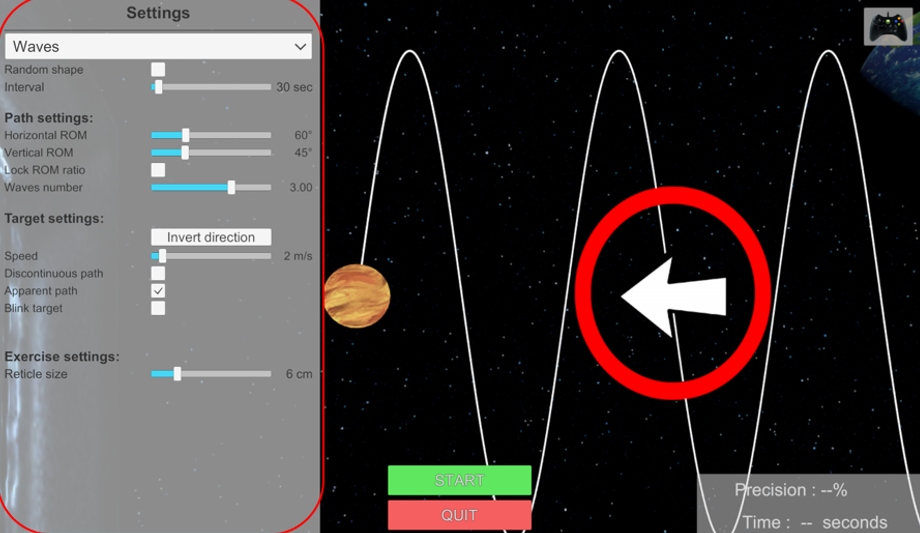
In general, increasing the range of motion or speed, adding a discontinuous path or blink target, removing the apparent path, or decreasing the reticle size increases the complexity of the activity.
11. Click the Xbox remote icon in the upper right corner to view information about shortcut keys.
12. Then you can view the results by clicking on the histogram icon.
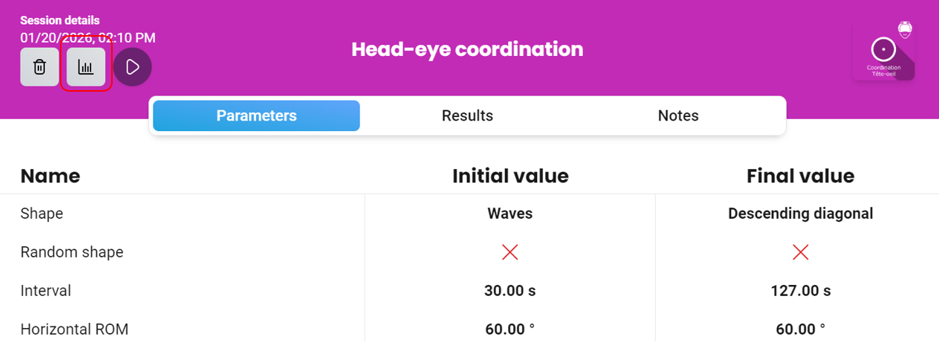
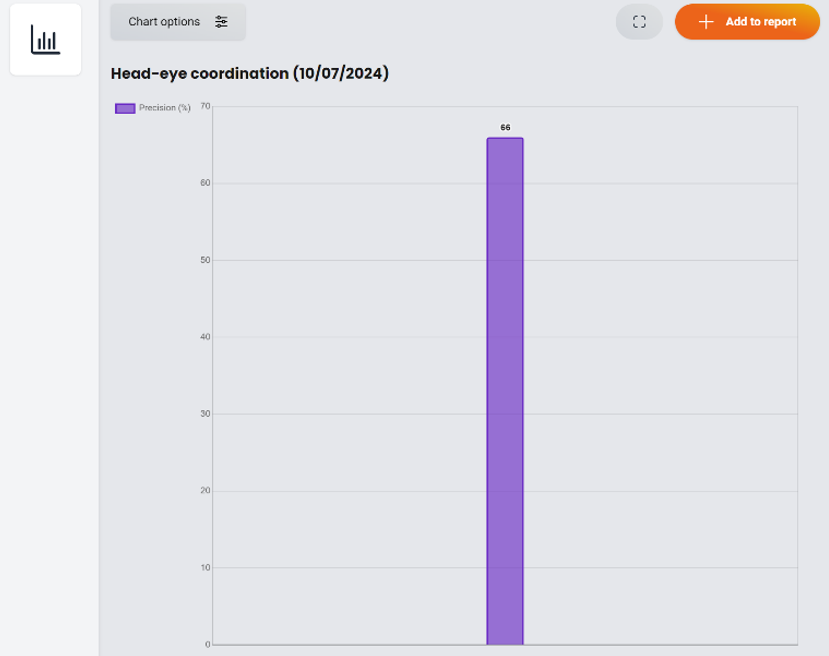
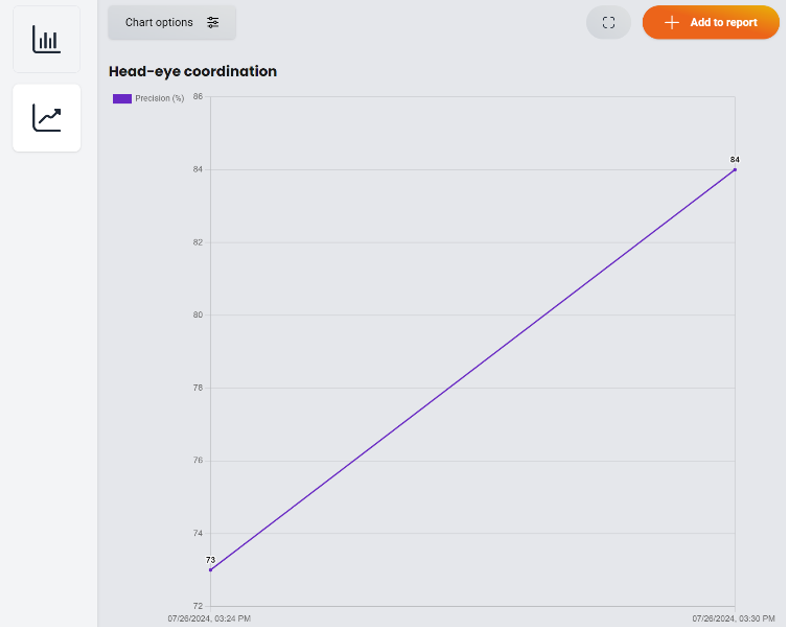
13. Precision (%) is the only default result and can be displayed as a bar graph or a line graph. You can select other results by clicking “chart options” on the top left of the screen.
Bar graph: precision (%) for one session:
Line graph: comparing precision (%) over two sessions:
Presenter