How to navigate the menus in the HTC Vive Focus Vision VR Headset
The menus are only used for setting up the headset or troubleshooting. They should not be used during a patient session.
Note: Patients should not enter nor push any menu buttons during rehabilitation. This will stop the Virtualis hardware and software which may result in the patient’s loss of balance. As always in rehabilitation, it is recommended to safely always guard your patient.
You will have access to different menus depending on whether you are using your VR headset in the wireless or wired streaming modes.
To enter the menus, you need to put the headset on your head. There are three different buttons to access menus. One on the headset, one on the right controller, and one on the left controller. One controller is needed to point and navigate in the menus.
Menu bars available in wireless streaming mode
Headset menu
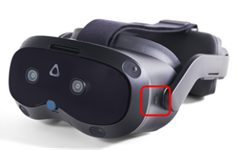
- Hold button for 3 seconds to enter.
- Menu appears:
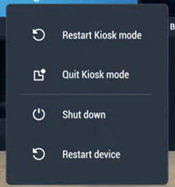
- The headset automatically starts in Kiosk mode. Kiosk mode needs to be activated to run the Virtualis software. For troubleshooting, Kiosk mode needs to be deactivated.
- To enter / exit Kiosk mode, you need to enter the 4-digit code: 0000.
- To exit the headset menu, use one controller and click the “X” button on the bottom.
Right hand controller: VIVE button
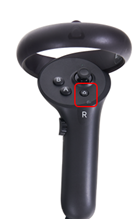
- In kiosk mode, if you click one time
- This is a VIVE menu which gives you access to the headset’s features and settings
- Settings tab
- Wi-Fi settings
- Reset view
- Passthrough mode
- IPD adjustment
- Devices tab
- VR headset and controller battery details
- Motion trackers tracking and battery details
- Settings tab
- This is a VIVE menu which gives you access to the headset’s features and settings
- Out of kiosk mode, if you click one time you have access to more settings. These are only needed for troubleshooting.
- In and out of kiosk mode, if you click twice, you activate or deactivate passthrough mode.
Left hand controller: VIVE menu
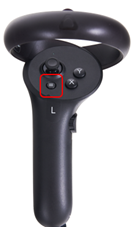
- In kiosk mode, if you click once
- This is the VIVE application library. No navigation is necessary.
- In kiosk mode, if you click twice
- This is the VIVE streaming settings menu. This provides streaming information only.
Menu bars available in wired streaming mode
Headset menu
- The headset automatically starts in Kiosk mode. Kiosk mode needs to be activated to run the Virtualis software. For troubleshooting, Kiosk mode needs to be deactivated.
- To enter / exit Kiosk mode, you need to enter the 4-digit code: 0000.
- To exit the headset menu, use one controller and click the “X” button on the bottom.
Right hand controller: VIVE button
- In and out of kiosk mode, if you click one time
- This is the VIVE menu which gives you access to adjust the IPD.
- In and out of kiosk mode, if you click twice, you activate or deactivate passthrough mode.
Presenter