How to connect the Touch Keyboard to the Affinity/Equinox Suite
In this quick guide, you will learn how to connect the Touch Keyboard to the Affinity/Equinox Suite with a splitter cable and a single USB-C cable.
Standard parts
- Touch Keyboard
- Power supply: UES60LCP-200300SPC
- Power splitter cable, 2 meters, including power cable USB-C
- USB-C to USB-A adapter (for use with USB-A ports)
How to charge the Touch Keyboard
Ensure the Touch Keyboard is charged before use. It is recommended to use the power splitter cable and power supply provided with the Touch Keyboard. Alternatively, you can connect the Touch Keyboard directly to a PC using a USB-C cable.
Note: The direct USB-C connection may not provide sufficient power or may result in slower charging.
How to use the power splitter cable

- Connect the USB-C cable to the Touch Keyboard at one end, and the splitter cable with the Touch Keyboard symbol on at the other end.
- Connect the USB-C with the screen symbol to the PC. If your PC only has a USB-A port, use the included adapter.
- Connect the USB-C end with the lightning symbol to the power supply. Plug the power supply into a socket that is switched on.
- Ensure the Touch Keyboard is fully charged before use.
How to connect with a USB-C cable directly
- Connect one end of the USB-C cable to the Touch Keyboard and the other end to a USB-C port on the PC.
- If needed, use the USB-C-to-USB-A adapter.
Note: Charging via PC may be slower or insufficient.
How to connect the Touch Keyboard to the Affinity/Equinox Suite
Step 1: Once charged and connected, turn on the Touch Keyboard by holding the top buttons on both wheels simultaneously for 2 seconds.
Step 2: To enable wireless functionality:
- Activate wireless connection in the Device Setup menu on the Touch Keyboard.
- Enable Bluetooth on your PC.
Step 3: Launch the Affinity/Equinox Suite. It will automatically detect and connect to the Touch Keyboard.
Step 4: Once a wired connection is established, you can disconnect the PC cable to switch to wireless mode. The connection status (wired or wireless) will be visible both in the Suite and on the Touch Keyboard.
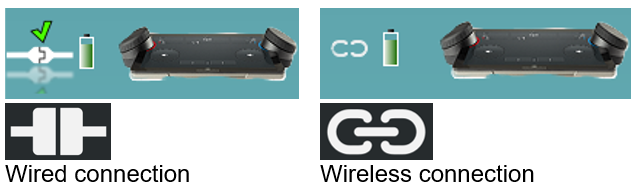
Once the Touch Keyboard has been connected both wired and wirelessly, it will automatically connect wirelessly in future sessions when both the Touch Keyboard and Suite are started. This allows you to keep the Touch Keyboard connected to the charger via USB-C while using it wirelessly with the PC.
Troubleshooting in case the Touch Keyboard does not connect wirelessly
The PC does not have Bluetooth: If your PC does not support Bluetooth, you can connect to the Touch Keyboard using a wired connection. Alternatively, you can use a Bluetooth dongle to enable wireless connectivity.
The Touch Keyboard was previously paired with a different PC: If the Touch Keyboard has been connected to another PC and Suite, it will not connect wirelessly to your current setup. In this case, you need to re-pair the Touch Keyboard with your PC by following steps 1-4 in the connection guide above. For more information on using the Touch Keyboard, please refer to the Instructions for Use and Additional Information documents.