
IA-AMTAS
What is IA-AMTAS?
IA-AMTAS is a special test within the Affinity Suite that provides an automated method for obtaining a diagnostic hearing test; including air and bone conduction thresholds with masking applied to the non-test ear. IA-AMTAS also provides automated tests of speech reception, both Speech Recognition Threshold (SRT) and Word Recognition Scores (WRS) may be obtained.
IA-AMTAS was developed through a partnership between Audiology Incorporated and three research institutions, the University of Minnesota, the University of Utah, and the James H. Quillen Veterans Administration Medical Centre. The development was funded by the National Institutes of Health Small Business Technology Transfer (STTR) Program.
IA-AMTAS is based on a psychophysical procedure that uses the patient's responses to determine signal levels needed to find auditory thresholds. Once the transducers are placed on the patient, the test is self-administered. The test is self-paced so that patients proceed at the rate that is comfortable for them. Feedback is provided to the patient that helps them distinguish between test tones and other auditory sensations. IA-AMTAS was designed to provide the same test results that would be obtained by an expert audiologist with a psychophysical procedure that has advantages over the commonly used clinical ("Hughson-Westlake") method.
Quality indicators provide information about the validity of results. Air conduction audiograms are classified based on configuration, severity, and symmetry. The program generates a report and interfaces with Affinity Suite and the data may be transferred to other software programs.
The IA-AMTAS Process
In your Affinity Suite go to Menu then Tests and click on AMTAS. On doing this you will be brought into the screen below.
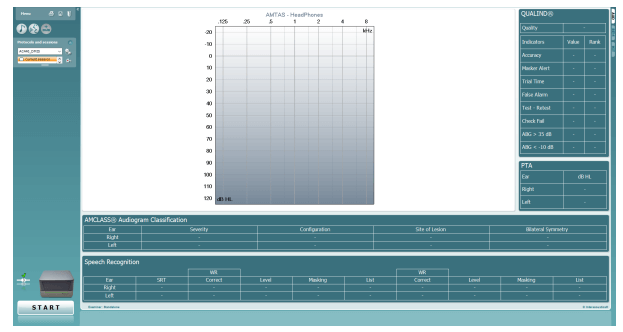
As no data exists you will not see anything in the graphs shown on the screen. If you have previous IA-AMTAS sessions then you will be able to view them along with their quality indicator results here.
Click 'Start' to begin the test, this will bring you into a new screen as shown below.
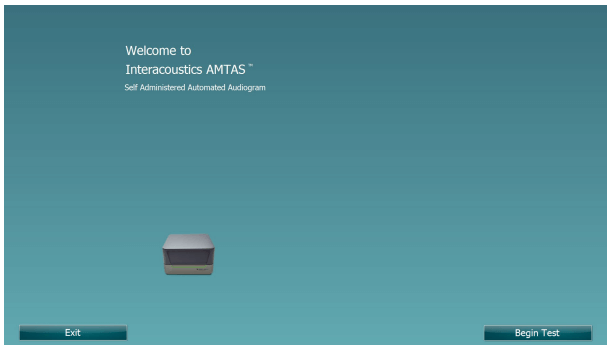
Press on the 'Begin Test' Button to proceed.
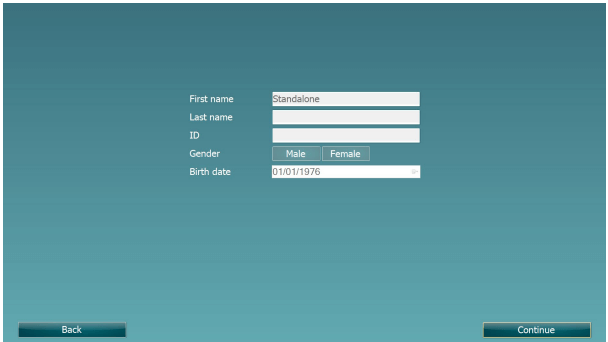
In this screen you will be shown the patients criteria, this is locked in circumstances where it can read from your database.
Click to continue. Where you will be shown an instruction video (unless an alternative method of instruction has been configured in your IA-AMTAS setup), below this is a volume slider to increase or decrease the volume of the instructions.
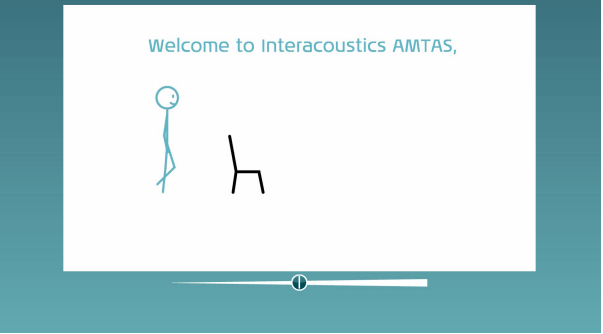
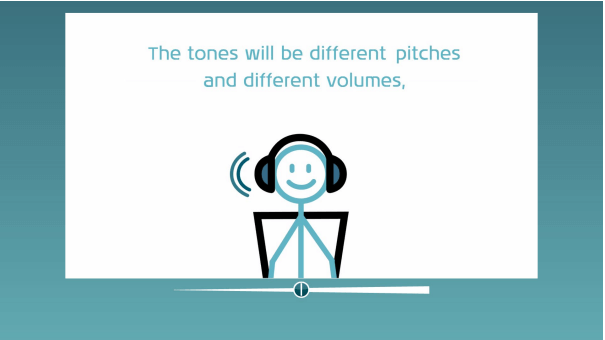
Once the video has completed the test will begin.
The patient is required to wear the headphone and bone transducer and respond via mouse or touch screen via the screen below.
Masking will be automatically applied depending on the status of the test. The patient is advised to ignore this when testing.
Throughout all of the IA-AMTAS test the process can be stopped by clicking on the cross in the top right corner
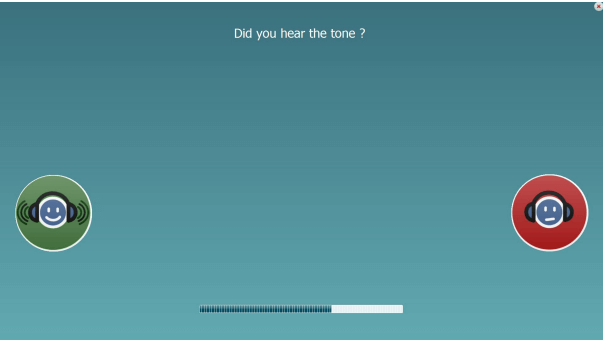
There is a progress bar shown at the botom of the screen to indicate to the patient how far they are through the test
Once completed the test will swap to a speech test to acquire the Word Recognition and Speech Recognition Threshold (if you have configured your system to include this). A video is shown to explain how this test proceeds and how to respond.
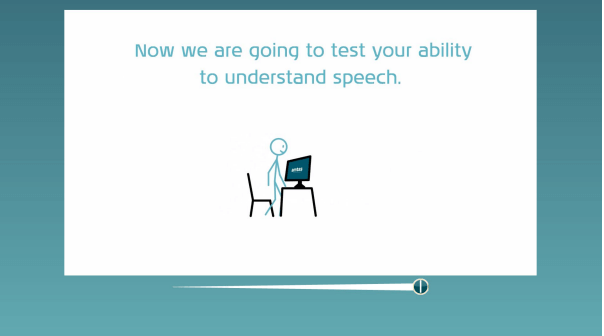
Once the video has finished the test will continue.
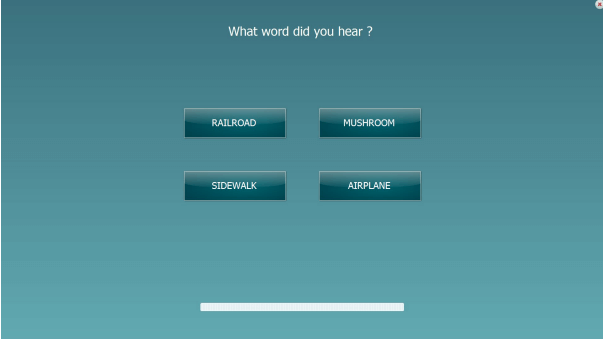
The below screens will show during testing both to indicate the response options and the status of the test.
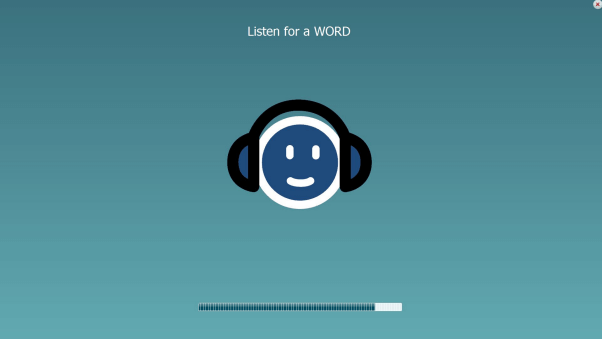
Once the test has completed you will see the following screen.
Note: The IA-AMTAS Test can be configured in the protocol settings. Settings include which audiometric frequencies you wish to include, which Air Conduction headset you wish to use, the option of masking amongst other settings. Please see the Affinity Compact Additional Information for further information on this.
Presenter