How to Set Up Your Patient on the MotionVR with the VIVE Focus Vision VR Headset
This quick guide provides information on how to set up your patient on the MotionVR with the VIVE Focus Vision VR headset. Following the proper setup procedure can decrease the likelihood of motion pause or lock errors. In general, the patient should refrain from pressing buttons on the hand controllers or moving the VR headset once fitted.
1. Before your patient arrives, turn on the computer and MotionVR force plate.
2. Launch the VIVE Business Streaming and SteamVR applications.
3. Turn on the VR headset and hand controllers. When the connection between the laptop and VR headset is established, the three lines in the VIVE Business Streaming app will turn green.


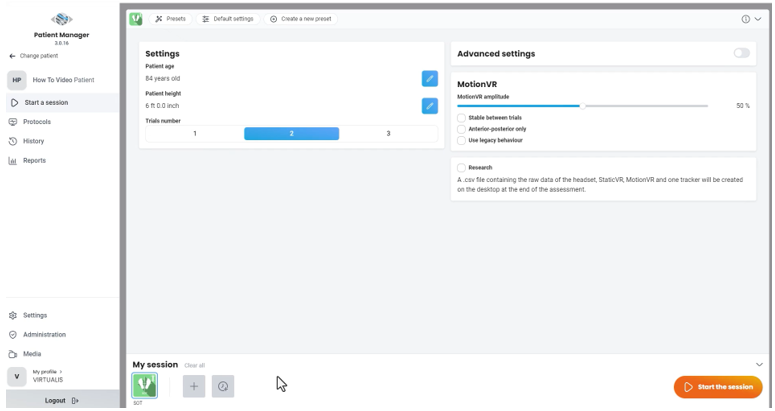
4. Launch Virtualis Patient Manager 3.0 and open the intended module in your patient’s profile.
5. When your patient arrives, provide them with instructions on the intended module.
6. Assist the patient on the MotionVR force plate:
- If you have the ring hardware option, position the ring at an appropriate height for your patient.
- If you have the overhead harness option, fit the harness to the patient and secure the harness to the clips.
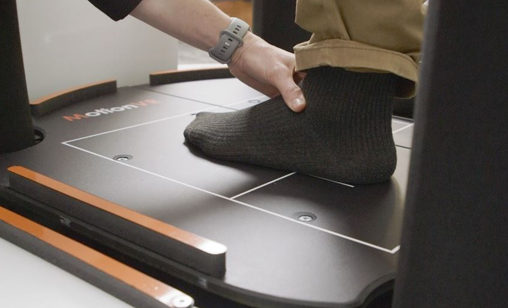
7. Center the patient’s feet on the MotionVR force plate. The front edge of the medial malleolus of each foot should be directly centered on the horizontal line of the force platform. The outer edge of the foot should be aligned with the antero-posterior line corresponding to the patient’s height (inner line: less than 55 inches; middle line: 56 to 65 inches; outer line: more than 65 inches).
8. Fit the VR headset to the patient. Instruct the patient not to adjust or remove the VR headset during the activity.
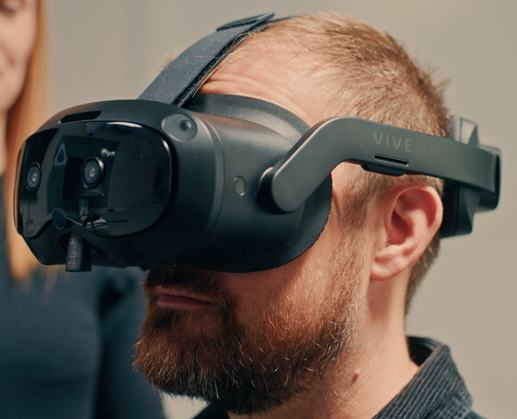
9. A prompt will be displayed inside the VR headset to complete the IPD adjustment. Instruct the patient to look at the blue dot.

10. The patient will then see the Virtualis home screen inside the VR headset.

11. If controllers are needed for the module, position the straps around the patient’s wrist and place the controllers in the patient’s hand. Instruct the patient not to press any buttons on top of the controllers.
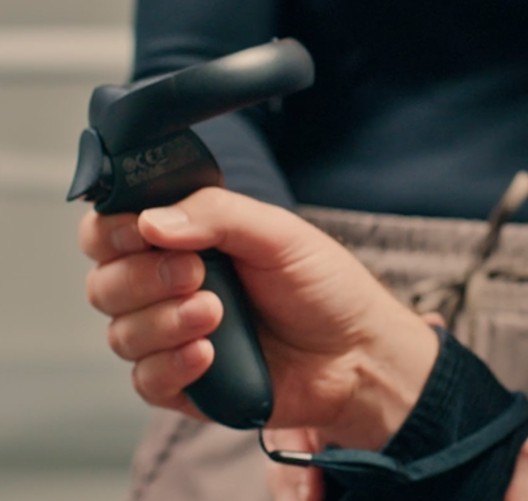
12. If controllers are not needed for the module, place them on the cart. Note: controllers must stay within the play boundary.
13. Launch the Virtualis module.
14. Once the patient is finished with the activity, exit the software module. The MotionVR force plate will return to the lowered position.
15. Remove the VR headset and accessories.
16. Assist the patient off the MotionVR force plate by either removing the harness or opening the ring.
Presenter